








Setting Run-time Configurations in Dagster
Start your free 7-days trial now!
Setting run-time configuration using Dagster UI
We can specify run-time configuration directly on the Dagster UI. Suppose we have the following main.py file:
from dagster import Definitions, assetimport pandas as pd
@asset(name="iris_data")def get_iris_data(context): context.log.info(context.op_config["greet"]) return df
defs = Definitions(assets=[get_iris_data])
Let's launch the Dagster UI using the following command:
dagster dev -f main.py
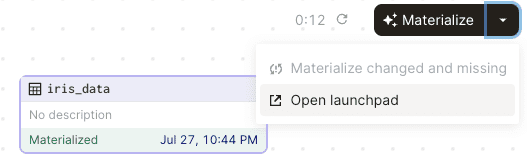
On the Dagster UI, click on the following dropdown icon and then click on Open launchpad:
The Launchpad is where we can specify our run-time configuration:
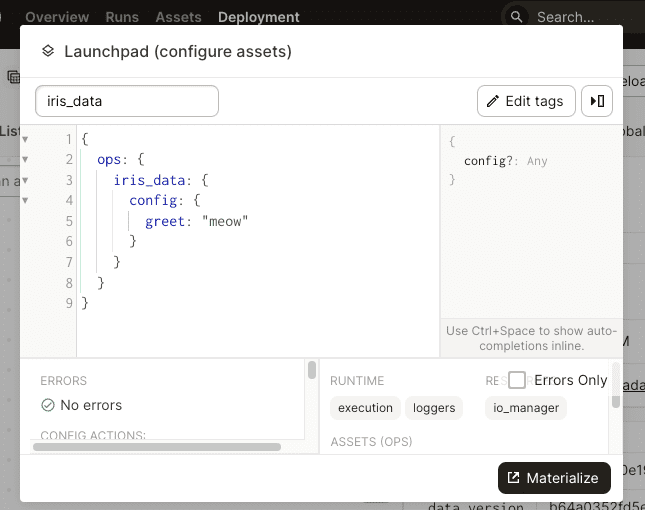
For those who want to copy and paste this config, here's the code:
{ ops: { iris_data: { config: { greet: "meow" } } }}
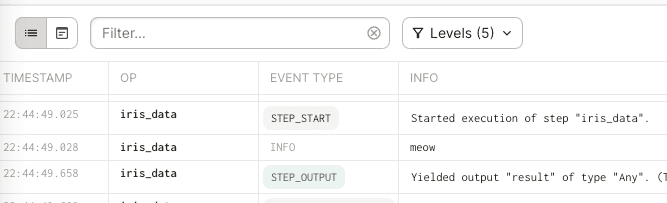
Once we click on Materialize, we should a meow in the logs:
To see the run configuration for this particular run, click on the View tags and config button on the top right corner:
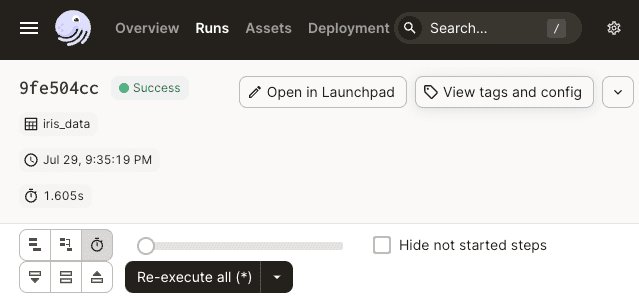
We should then see the following:
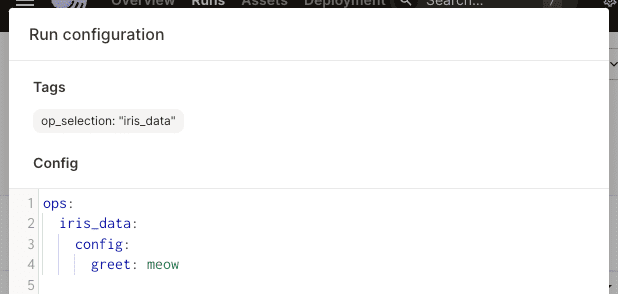
This is quite useful when looking back at past runs!
Passing in run-time configuration programmatically
We can programmatically set run-time configuration that assets can access during their materialization.
Using a Python dictionary
To demonstrate, consider the following main.py file:
                    from dagster import RunConfig, Config, asset, materialize
@asset(name="my_data")def get_my_data(config: dict):    print(config)   # {'cat': 'meow', 'dog': 'ruff'}    return "My data"
if __name__ == "__main__":    asset_result = materialize(        [get_my_data],        run_config={            "ops": {                "my_data": {                    "config": {                        "cat": "meow",                        "dog": "ruff"                    }                }            }        }    )
Here, note the following:
the
"ops"key is synonymous to"assets".to pass run-time configurations to our
my_dataasset, we must specify"my_data"under"ops", and then"config"under"my_data".to access the run-time configurations in our assets, we must supply
configas parameter - this word must be spelt exactly asconfig(instead of sayconfiggg), otherwise an error is thrown.we must also supply a
dicttype-hint, otherwise an error will be thrown.
Let's now run our main.py file:
                    python main.py


            2023-09-14 21:21:01 +0800 - dagster - DEBUG - __ephemeral_asset_job__ - e9fd75c0-a86c-411f-a6ae-ce7b7d08831e - 8583 - RUN_START - Started execution of run for "__ephemeral_asset_job__"....{'cat': 'meow', 'dog': 'ruff'}...
Instead of passing in the config parameter, we can also access the run-time configuration via the context object like so:
@asset(name="my_data")def get_my_data(context): print(context.op_config) # {'cat': 'meow', 'dog': 'ruff'} return "My data"
Instead of specifying which asset to pass the configuration to, we can set the run-time configurations under "execution" so that all assets can gain access to them:
                    @asset(name="my_data")def get_my_data(context):    print(context.run_config["execution"]["config"])   # {'cat': 'meow', 'dog': 'ruff'}    return "My data"
if __name__ == "__main__":    asset_result = materialize(        [get_my_data],        run_config={            "execution": {                "config": {                    "cat": "meow",                    "dog": "ruff"                }            }        }    )
Using a Dagster Config
Instead of passing a Python dictionary, which can hold any arbitrary key-value pairs, we can be more specific by passing a Dagster config. To demonstrate, consider the following main.py file:
                    from dagster import RunConfig, Config, asset, materialize
class MyAssetConfig(Config):    my_string: str = "my_default_string"    my_numbers: list
@asset(name="my_data")def get_my_data(config: MyAssetConfig):    print(config.my_string)    print(config.my_numbers)    return "My data"
if __name__ == "__main__":    asset_result = materialize(        [get_my_data],        run_config=RunConfig({"my_data": MyAssetConfig(my_numbers=[1,2])}),    )
Note the following:
the
MyAssetConfigclass, which inherits Dagster'sConfigclass, provides the template of the configuration.we can pass the run-time configuration (
MyAssetConfig) to the asset (my_data) by passing it in as the first parameter.we have to specify the type of the
configparameter toMyAssetConfig- otherwise, Dagster will throw an error. Also, theconfigparameter must be named exactlyconfig- if we useconfigginstead, an error will be thrown.in the
materialize(-)function, we pass an instance of theRunConfigusing therun_configparameter.the
RunConfigtakes as input a dictionary where the key ("my_data"in this case) is the name of the asset to pass the configuration to, while the value is an instance of the run-time config.
Let's now run our main.py file:
                    python my_dagster_code_location/main.py


            ...2023-07-16 23:24:55 +0800 - dagster - DEBUG - __ephemeral_asset_job__ - 22815ef5-8ec0-4759-9c2f-334fc2511a6f - 25168 - my_data - STEP_START - Started execution of step "my_data".my_default_string[1, 2]...
Note that if we specify non-defined fields to our configuration class, then an error will be thrown when Dagster validates the configuration at launch:
if __name__ == "__main__": asset_result = materialize( [get_my_data], # some_other_field is a property not defined in MyAssetConfig run_config=RunConfig({"my_data": MyAssetConfig(some_other_field=[1,2])}), )
Accessing run-time configuration using the context object
Instead of accessing the run-time config object directly, we can also access it via the context object like so:
                    from dagster import RunConfig, Config, asset, materialize, OpExecutionContext
class MyAssetConfig(Config):    my_string: str = "my_default_string"    my_numbers: list
@asset(name="my_data")def get_my_data(context: OpExecutionContext):    print(context.op_config["my_string"])       # my_default_string    print(context.op_config["my_numbers"])      # [1, 2]    return "My data"
if __name__ == "__main__":    asset_result = materialize(        [get_my_data],        run_config=RunConfig({"my_data": MyAssetConfig(my_numbers=[1,2])}),    )
Note that we could pass the config and context objects at the same time like so:
@asset(name="my_data")def get_my_data(context: OpExecutionContext, config: MyAssetConfig): assert context.op_config["my_numbers"] == config.my_numbers return "My data"
Here, the ordering of the parameters context and config does not matter - only their names do!
Setting tags to runs when materializing
We can attach key-value tags to runs, which we can then use for filtering in the Dagster UI. In this section, we will demonstrate how to do so using the Dagster UI and Dagster's Python API.
Using Dagster UI
Suppose we have a Python file called my_code_location.py with the following content:
                    from dagster import Definitions, assetfrom dagster import asset
@asset(name="my_asset")def get_my_asset():    return 3
defs = Definitions(assets=[get_my_asset])
Launch the Dagster UI like so:
                    dagster-webserver -f my_code_location.py


            2023-08-30 21:31:57 +0800 - dagster.code_server - INFO - Started Dagster code server for file my_code_location.py in process 322542023-08-30 21:31:57 +0800 - dagster-webserver - INFO - Serving dagster-webserver on http://127.0.0.1:3000 in process 32251
Click on the dropdown icon on the right of the Materialize button and click on Open launchpad:
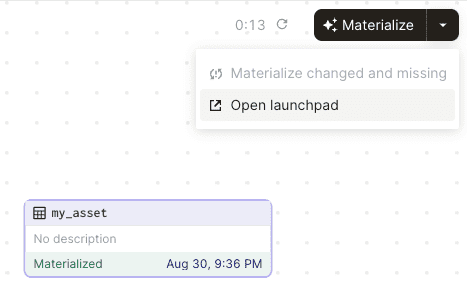
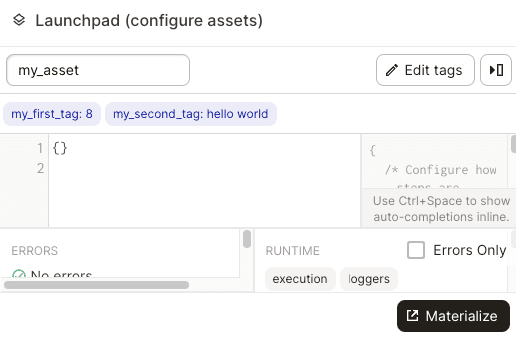
Next, click on the Edit tags button:
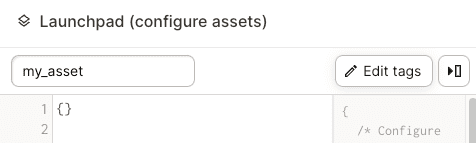
Let's add the following two tags to our run:
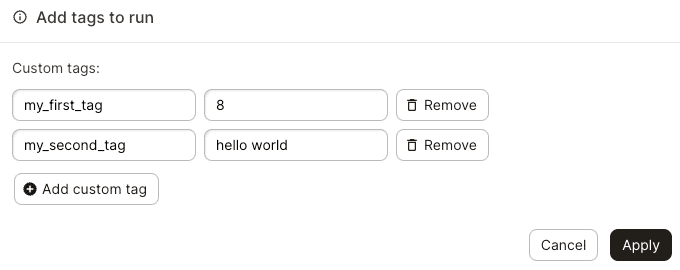
Click Apply and then click on Materialize button at the bottom below:
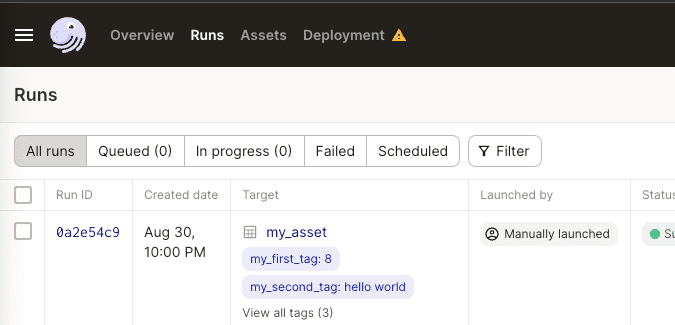
Now, under the Run tab, we should see our executed run with the tags that we set:
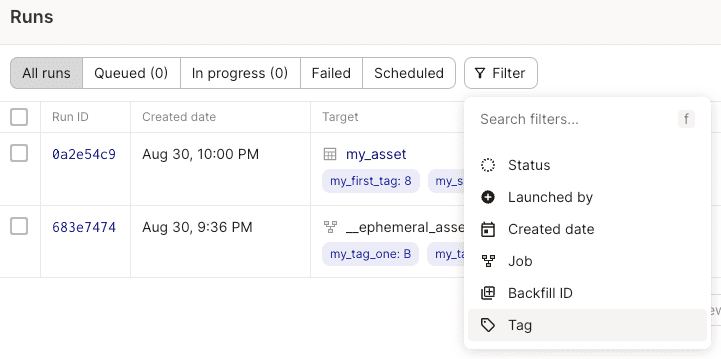
Tags are useful because we can filter by tag like so:
Using Dagster's Python API
Let's now demonstrate how to set tags to runs when using Dagster's Python API. Consider the following files:
dagster_home/main.pymy_asset.pymy_code_location.py
Where my_asset holds our asset:
                    from dagster import asset
@asset(name="my_asset")def get_my_asset():    return 3
Our main.py materializes this asset via the Dagster Python API:
                    from my_asset import get_my_assetfrom dagster import materialize, DagsterInstanceimport os
if __name__ == "__main__":    os.environ["DAGSTER_HOME"] = "/Users/isshininada/dagster_tutorial/dagster_home"    with DagsterInstance.get() as instance:        materialize(            assets=[get_my_asset],            instance=instance,            tags={                "my_tag_one": "B",                "my_tag_two": 5,            }        )
Here, we've attached two key-value tags to our run.
Finally, my_code_location.py holds the Dagster Definitions object to initialize the UI:
                    from my_asset import get_my_assetfrom dagster import Definitionsimport os
os.environ["DAGSTER_HOME"] = "/Users/isshininada/dagster_tutorial/dagster_home"defs = Definitions(assets=[get_my_asset])
Now, let's run our main.py to materialize our assets:
                    python main.py


            2023-08-30 21:36:27 +0800 - dagster - DEBUG - __ephemeral_asset_job__ - 683e7474-306e-4c89-82fe-343bbf08b6b9 - 32646 - RUN_START - Started execution of run for "__ephemeral_asset_job__".2023-08-30 21:36:27 +0800 - dagster - DEBUG - __ephemeral_asset_job__ - 683e7474-306e-4c89-82fe-343bbf08b6b9 - 32646 - ENGINE_EVENT - Executing steps in process (pid: 32646)2023-08-30 21:36:27 +0800 - dagster - DEBUG - __ephemeral_asset_job__ - 683e7474-306e-4c89-82fe-343bbf08b6b9 - 32646 - my_asset - RESOURCE_INIT_STARTED - Starting initialization of resources [io_manager]....
Spin up the Dagster UI server like so:
                    dagster-webserver -f my_code_location.py


            2023-08-30 21:31:57 +0800 - dagster.code_server - INFO - Started Dagster code server for file my_code_location.py in process 322542023-08-30 21:31:57 +0800 - dagster-webserver - INFO - Serving dagster-webserver on http://127.0.0.1:3000 in process 32251
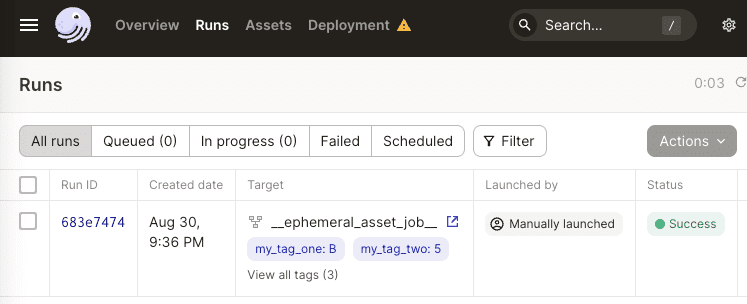
When we head over to the run tab, we can see our run recorded with the two tags that we've set: